
Set up Guru Flow at your firm
Last updated 31/10/2026
Before you start
You don't need an IT department. Set-up takes about half an hour, done once for the whole firm.
The person who looks after your firm's Microsoft 365 does it, usually whoever set it up or pays for it. To check that's you, go to admin.microsoft.com and sign in with your work account. If the Microsoft 365 admin centre opens, it's you.
Your Guru account
Your firm has Guru Flow in Guru Accounts, and you are its Owner or an Admin there.
Microsoft 365
A Business or Enterprise plan, which includes Outlook and SharePoint.
Windows
Windows 11, or Windows 10 kept up to date, on each computer that will use the desktop app.
Your documents and emails stay in your firm's own Microsoft 365. None of them is sent to Guru (/help#what-guru-receives).
Set-up steps
Do them in this order. Step 3 can take a few hours to reach Outlook, so it comes early.
1. Give people a seat
Guru Accounts · About 2 minutes
- Go to app.insolvency.guru and sign in.
- Select People.
- Under Your team, select Guru Flow beside each person who will use it, yourself included, so it's switched on.
- To add someone who isn't listed, fill in Invite a colleague, tick Guru Flow and select Send invitation.
Your firm's Guru Owners and Admins are Guru Flow admins. Everyone else can request approval straight away; you choose reviewers in Guru Flow later.
2. Approve Guru Flow
Microsoft · About 1 minute
Microsoft asks one person to approve a new app for the whole firm, so nobody else is asked.
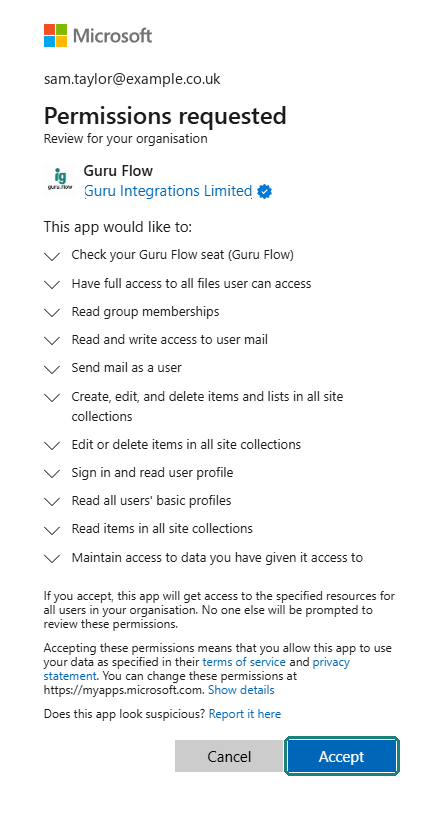
- Select Approve Guru Flow above, and sign in with your work account.
- Check the screen says Guru Flow from Guru Integrations Limited, with a blue tick. The tick means Microsoft has checked who we are.
- Select Accept. You come back to this page.
Guru Flow is approved for your firm. Go on to step 3.
Guru Flow wasn't approved. Select Approve Guru Flow again when you're ready.
3. Add Guru Flow to Outlook
Microsoft 365 admin centre · About 3 minutes
This adds Guru Flow to everyone's Outlook at once: Outlook for Windows, Outlook on the web and Outlook for Mac. Nobody installs anything in Outlook themselves.
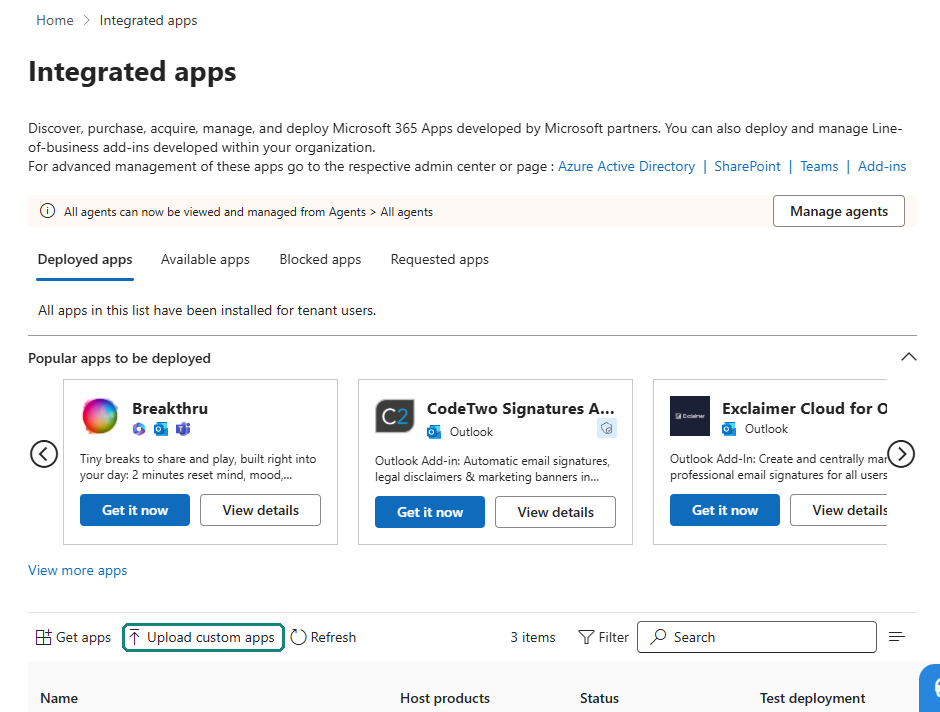
- Open the Integrated apps page of the Microsoft 365 admin centre.
- Select Upload custom apps.
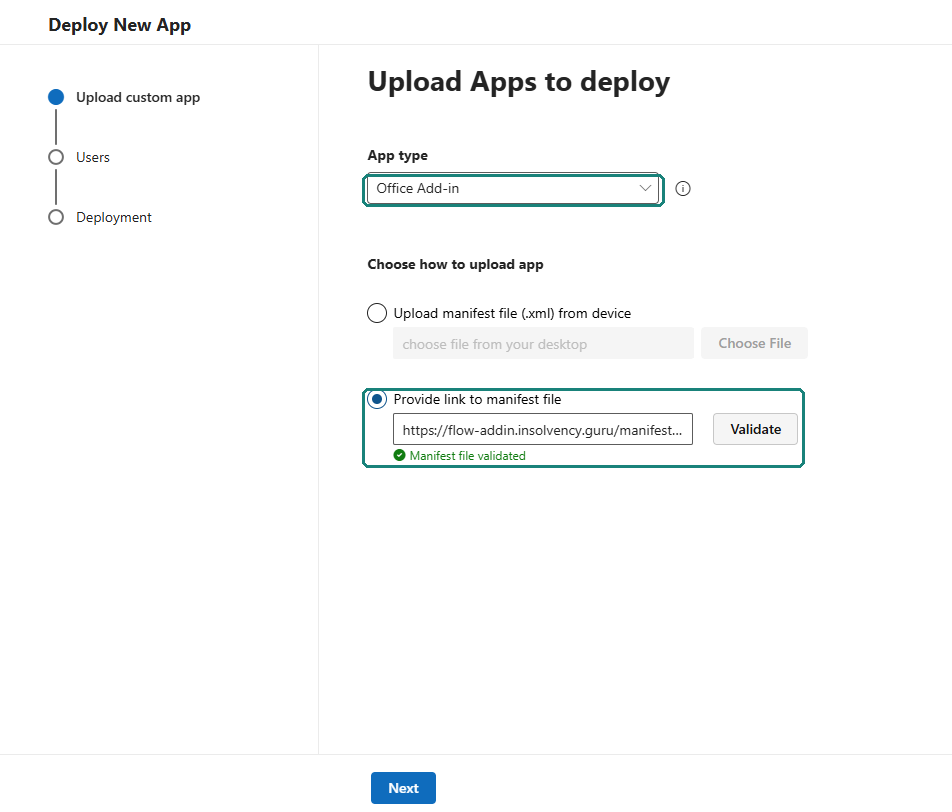
- Under App type, choose Office Add-in.
- Select Provide link to manifest file, paste the address below into the box, and select Validate. It should say Manifest file validated.
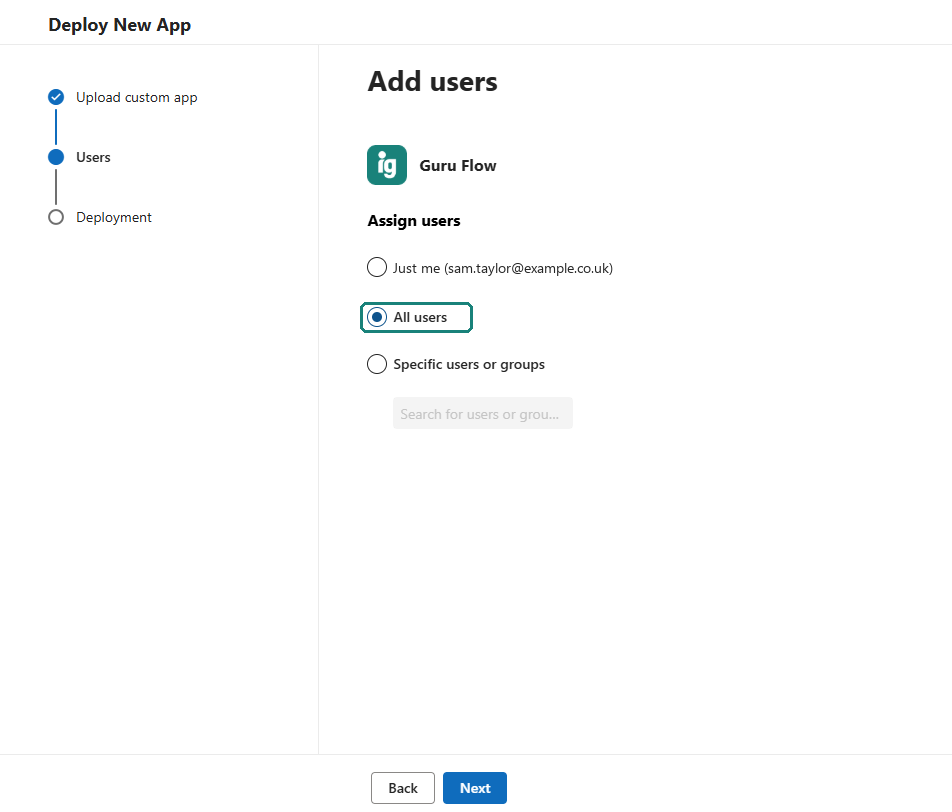
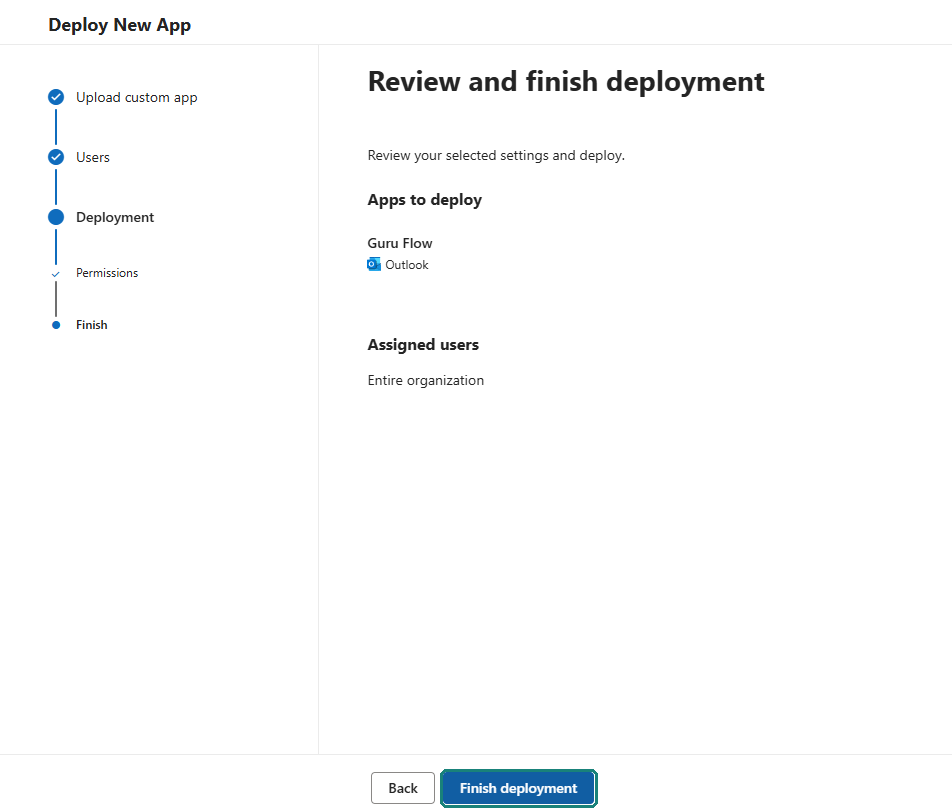
- Select Next, choose All users, and select Next again.
- Select Next on the permissions page, then Finish deployment.
https://flow-addin.insolvency.guru/manifest.xml
Microsoft can take a few hours, and sometimes up to a day, to show it in everyone's Outlook. Carry on with the next steps meanwhile.
4. Create the Guru Flow site
SharePoint · About 3 minutes
Guru Flow keeps its records, such as who approved what, in a SharePoint site of your own called GuruFlow.
- Open SharePoint.
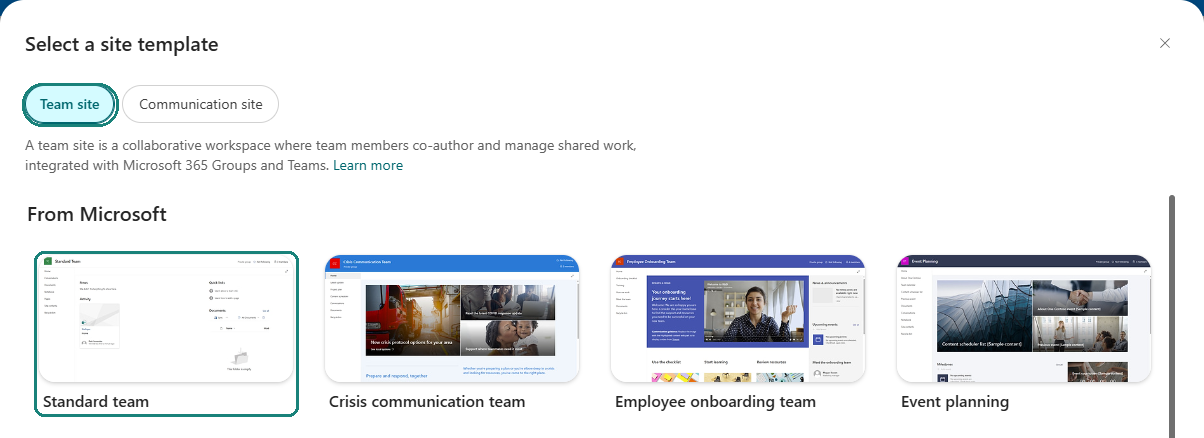
- Select Build on the left, then Site. If you see + Create site at the top instead, select that.
- Choose Team site, then Standard team, then Use template.
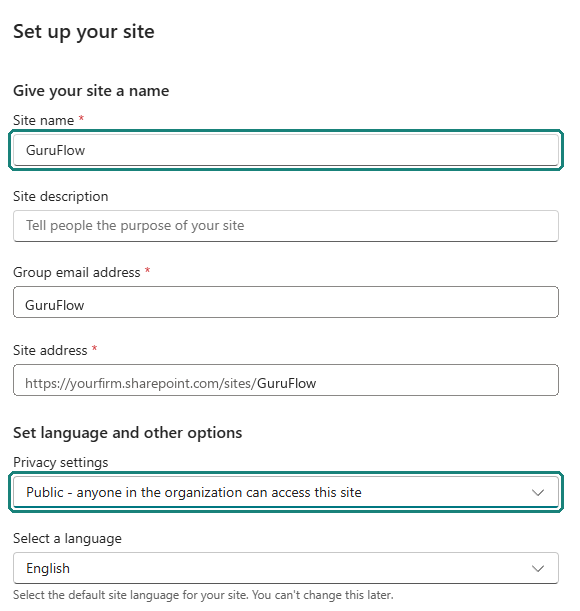
- For Site name, type GuruFlow, as one word. Check the Site address ends in /sites/GuruFlow.
- Under Privacy settings, choose Public - anyone in the organization can access this site, so everyone at the firm can use Guru Flow.
- Select Create site. When SharePoint asks you to add members, select Finish.
5. Install Guru Flow on your computer
Your computer · About 5 minutes
Do this on your own computer first. The first time Guru Flow starts, it sets itself up in the GuruFlow site, which needs the person who created the site.
Guru Flow is downloaded from Guru Accounts, by people with a Guru Flow seat (step 1).
- Select Go to Downloads above, and sign in to Guru Accounts if it asks. You can also sign in at app.insolvency.guru and choose Downloads.
- Under Guru Flow for Windows, select Download for Windows. When the download finishes, open the file.
- Windows asks whether to install Guru Flow from Guru Integrations Limited. Select Install.
- When Guru Flow starts, read the licence agreement, tick the box and select I accept.
- Select Sign in with Microsoft, and sign in with your work account.
- Select Sign in with Guru. Your browser opens. Sign in to Guru there, then come back to Guru Flow.
- Guru Flow shows Setting up Guru Flow for about half a minute. When it says Guru Flow is ready, select Get started.
Guru Flow keeps itself up to date. Windows installs each new version in the background.

6. Set up filing in Outlook
Outlook · About 5 minutes, once Guru Flow is in Outlook
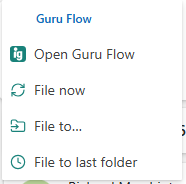
- In Outlook, select an email. On the ribbon, select Open Guru Flow. In Outlook on the web and the new Outlook it may be under Guru Flow or Apps on the ribbon.
- If the pane shows Connect your Microsoft account, select Continue. If it shows Sign in to Guru, select Sign in. Use the same account as Outlook.
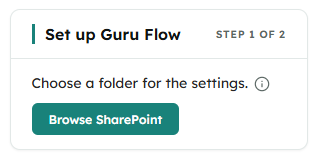
- The pane shows Set up Guru Flow. Select Browse SharePoint.
- Choose the GuruFlow site, then Documents, and select Use this folder. Guru Flow keeps your firm's filing settings there.
- Find the library or folder that holds your case folders, and select Use this location.
You can now file email. The first time you file into a library, Guru Flow asks to add two columns to it, so it never files the same email twice. Select Set up.
7. Install Guru Flow for everyone else
Each person's computer · About 5 minutes each
Send everyone with a seat this email. They install it themselves, the same way you did.
Subject: Install Guru Flow

We're starting to use Guru Flow to approve documents and emails before they go out, and to file email into SharePoint.

To install it on your computer:
1. Go to https://app.insolvency.guru/downloads and sign in to Guru Accounts with your usual work account.
2. Under Guru Flow for Windows, select Download for Windows.
3. Open the file that downloads, and select Install.
4. When Guru Flow starts, select I accept, then Sign in with Microsoft, and use your usual work account.
5. Select Sign in with Guru, and sign in in your browser if it asks.

Guru Flow is also in Outlook already: select an email, then Open Guru Flow on the ribbon. There's nothing to install for that.

Help: https://flow.insolvency.guru/help
When they have it, choose who reviews and who authorises: see /help#grant-a-role.
For IT teams
Firms with IT support can push Guru Flow to everyone, in place of steps 2, 3, 5 and 7.
Approval
Use the admin approval link, or grant consent in the Microsoft Entra admin centre under Enterprise applications. The app id is ee5b0d7f-714d-47a0-ad92-a05ea229068e. It uses delegated permissions only.
Outlook add-in
Deploy https://flow-addin.insolvency.guru/manifest.xml from Integrated apps, to everyone or to a group of the people with seats.
Desktop app
Download the installer file from Downloads in Guru Accounts (app.insolvency.guru/downloads), signed in with a Guru Flow seat, and deploy it with Intune or Configuration Manager as a line-of-business app. Installed from that file, Windows keeps it up to date. It is a signed MSIX package for 64-bit Windows 10 (version 2004 or later) and Windows 11.
SharePoint
The site must be at /sites/GuruFlow, and everyone with a seat needs to be able to edit it. The first person to start the desktop app must be one of the site's owners. We recommend locking Guru Flow's audit lists so records can be added but not changed: contact support for the steps.
Guru Flow's roles decide what the app shows each person and what they can do in it, not what SharePoint lets them open. Every member of the site can read the approval requests list (GF_Envelopes) directly in SharePoint, rejection reasons included.
If something goes wrong
Microsoft says I need admin approval
You signed in with an account that can't approve apps for the firm. Sign in as the person who looks after your Microsoft 365, or send them this page and ask them to do step 2.
Guru Flow isn't in Outlook yet
Microsoft can take up to a day to add it after step 3. Close Outlook and open it again. If it still isn't there the next day, check that Guru Flow is listed on the Integrated apps page, assigned to All users.
The downloaded file won't open
Windows opens it with App Installer. If that's missing, install App Installer from the Microsoft Store, then open the file again. Guru Flow needs Windows 11, or Windows 10 version 2004 or later.
Guru Flow can't find the site
The site's address must end in /sites/GuruFlow. If SharePoint added a number, such as GuruFlow2, because the name was already taken, contact support and we'll help you sort it out.
Someone can't use Guru Flow
Check they have a seat (step 1). If Guru Flow says they don't have access to the site, the site isn't public: in the GuruFlow site, add them as a member, or make the site public. See also /help#no-seat.
Contact
Contact support if you get stuck. We can talk you through it. Once you're set up, the help page covers using Guru Flow day to day.